
Calendar View – Services
TABLE OF CONTENTS
- Overview
- Scheduling Types in Calendar View
- Enabling or Disabling Scheduling Types
- How the View Changes
- Filters by Scheduling Type
- Additional Calendar Controls
- Tips
- Limitation: Third-Party Calendar Updates
Overview
The Calendar View is your central hub for managing appointments and bookings. It’s designed to adapt based on the type of scheduling you use — giving you a focused experience whether you’re handling meetings or service bookings.
Scheduling Types in Calendar View
Currently, there are two scheduling types available:
Meetings
-
Best for sales calendars, personal booking, collective calendars, classes, or round robin scheduling.
-
Includes all existing calendar types (personal, round robin, collective, class, service calendars v1, and service menu).
-
Designed for anyone managing internal or client-facing meetings.
Services
-
Purpose-built for service-based businesses.
-
Supports advanced options such as variations, add-ons, multiple services and staff specific pricing.
-
Helps manage bookings that involve staff, different service types, or multiple locations.
Enabling or Disabling Scheduling Types
-
Scheduling types can be enabled or disabled from Agency Settings.
-
If only one type is enabled, the Calendar View will automatically load that type, and the top dropdown will remain hidden.
-
If both Meetings and Services are enabled, a dropdown menu appears at the top of Calendar View, allowing you to switch between them.
How the View Changes
When you select a scheduling type from the dropdown at the top of Calendar View:
-
The layout and filters on the right panel automatically adjust to match the selected type.
-
The events and blocked slots shown in the calendar are specific to that scheduling type only.
-
This ensures you always see relevant information without cross-type clutter.
Filters by Scheduling Type
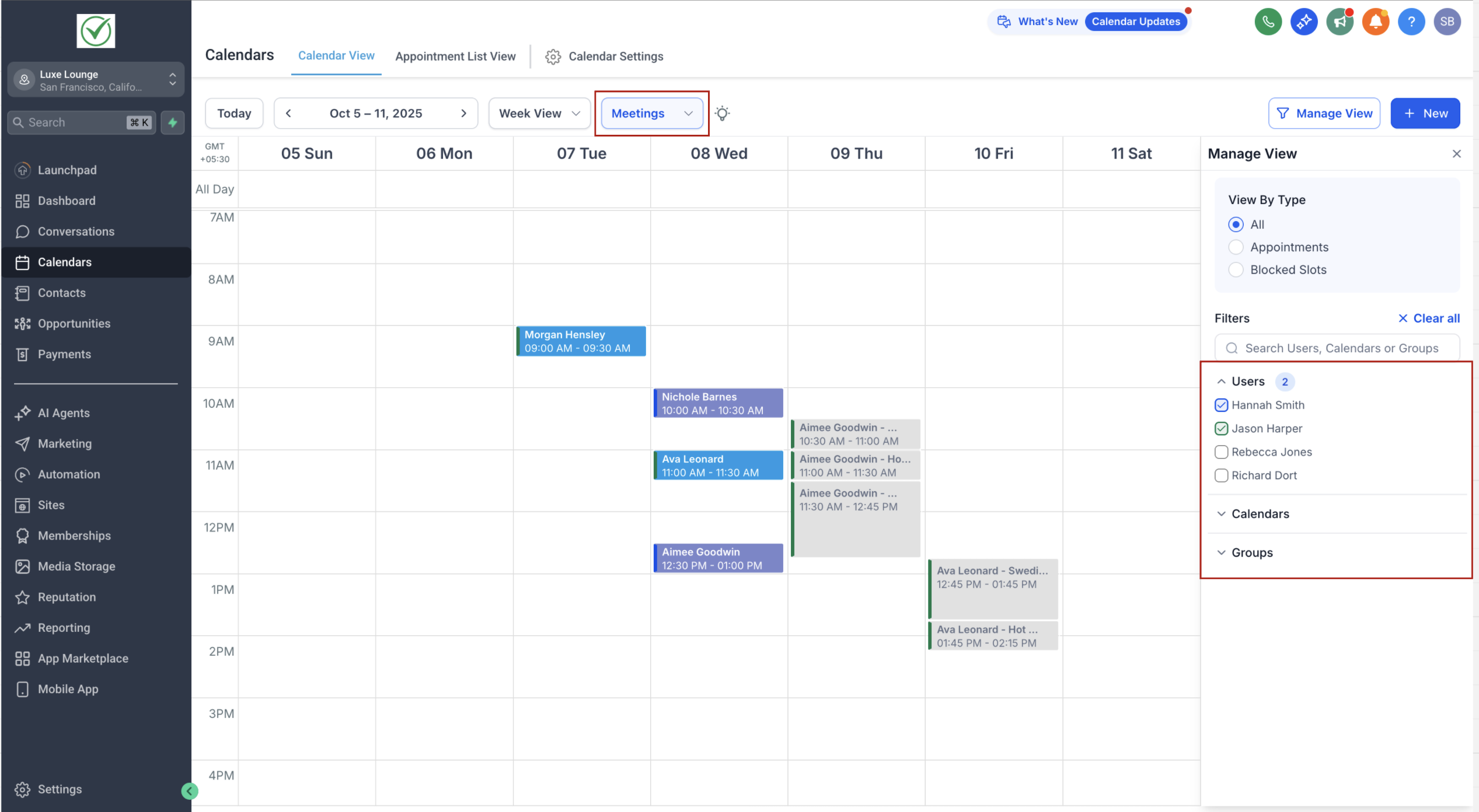
Meetings View Filters
-
Users → Show calendars linked to specific users.
-
Calendars → Toggle specific calendars (personal, round robin, collective, class, etc.).
-
Groups → Filter events by calendar groups.
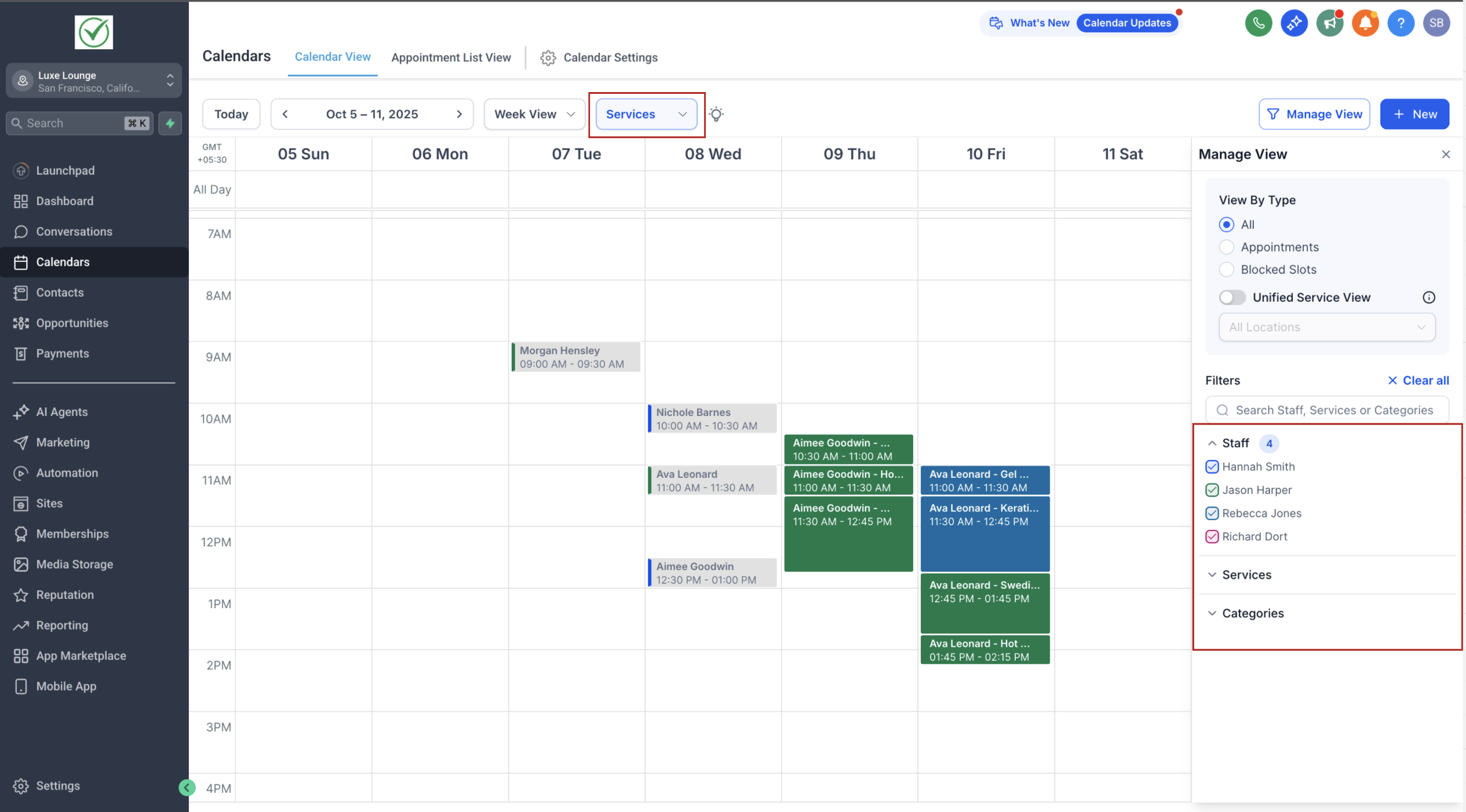
Services View Filters
-
Staff → Show events by assigned staff members.
-
Services → Display bookings tied to specific services.
-
Categories → Narrow down results by service categories.
-
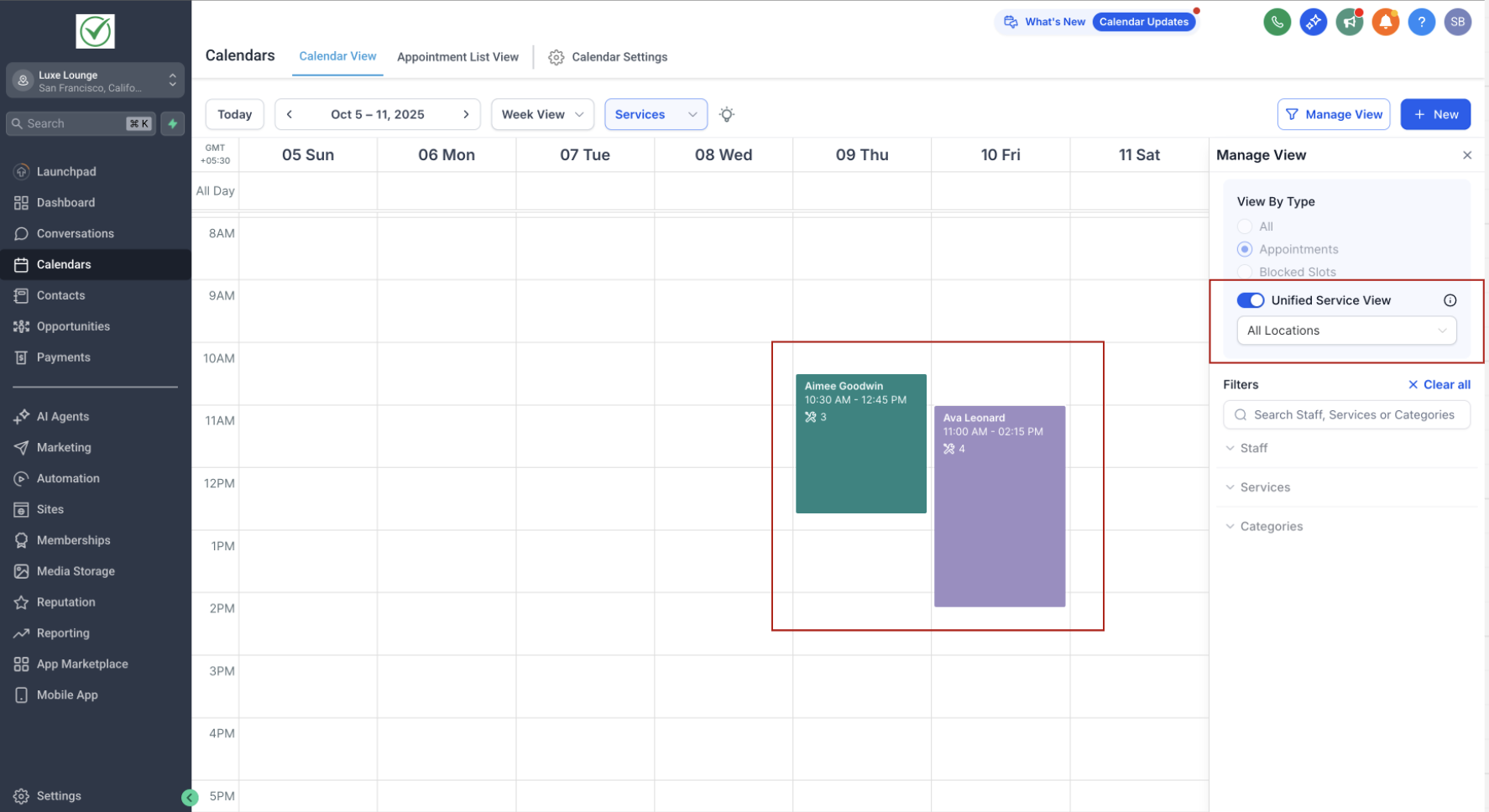
Unified Service Booking View →
-
When enabled, each Service Booking appears as a single block on the calendar, with all its appointments grouped inside.
-
Note: Staff, Service, and Category filters won’t be available in this view since it displays all appointments together.
-
Location Filter becomes available — you can filter appointments based on the location where they were booked.
-
Additional Calendar Controls
-
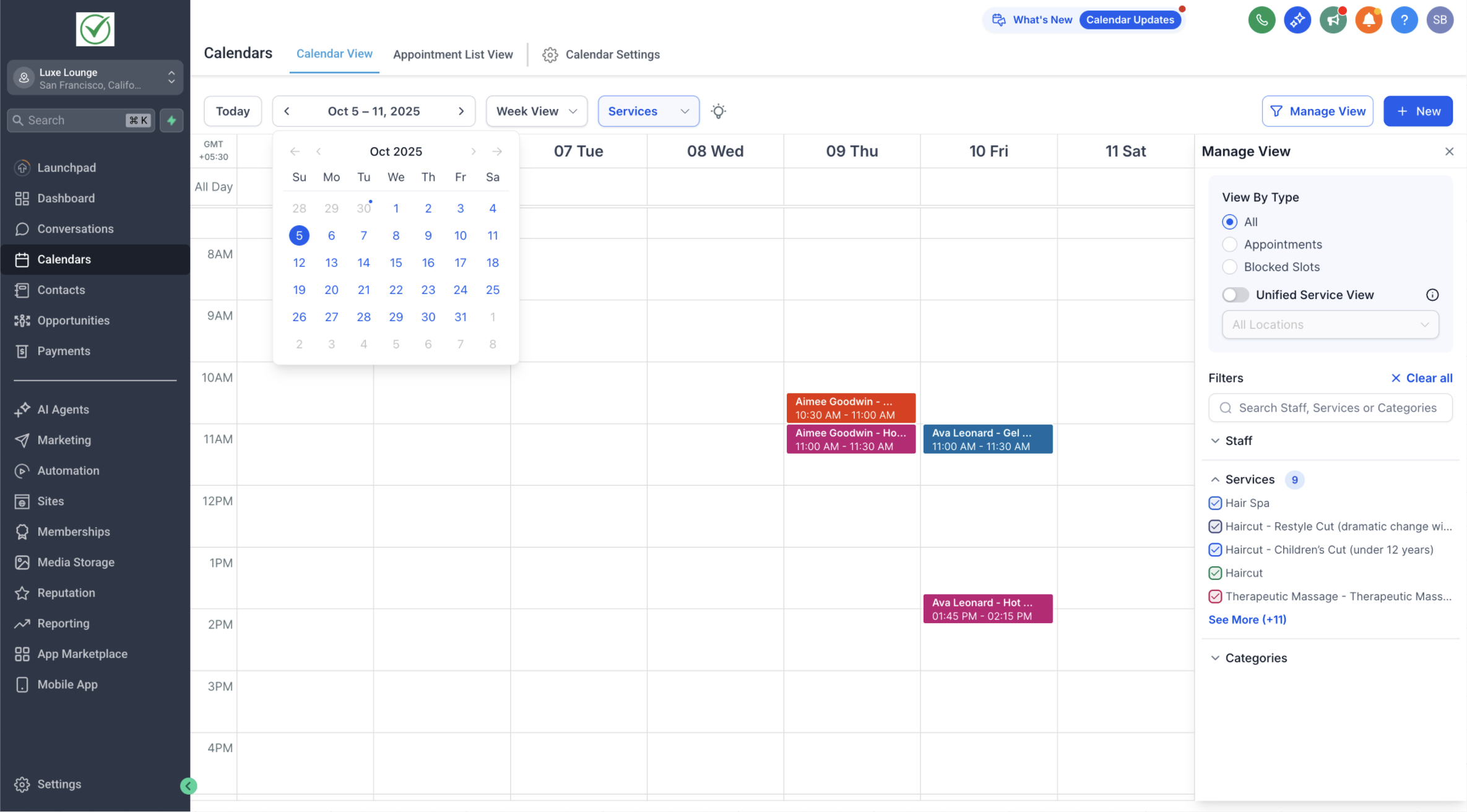
Month View Access: The mini month-view calendar is located under the main date. Click the date to expand it.
-
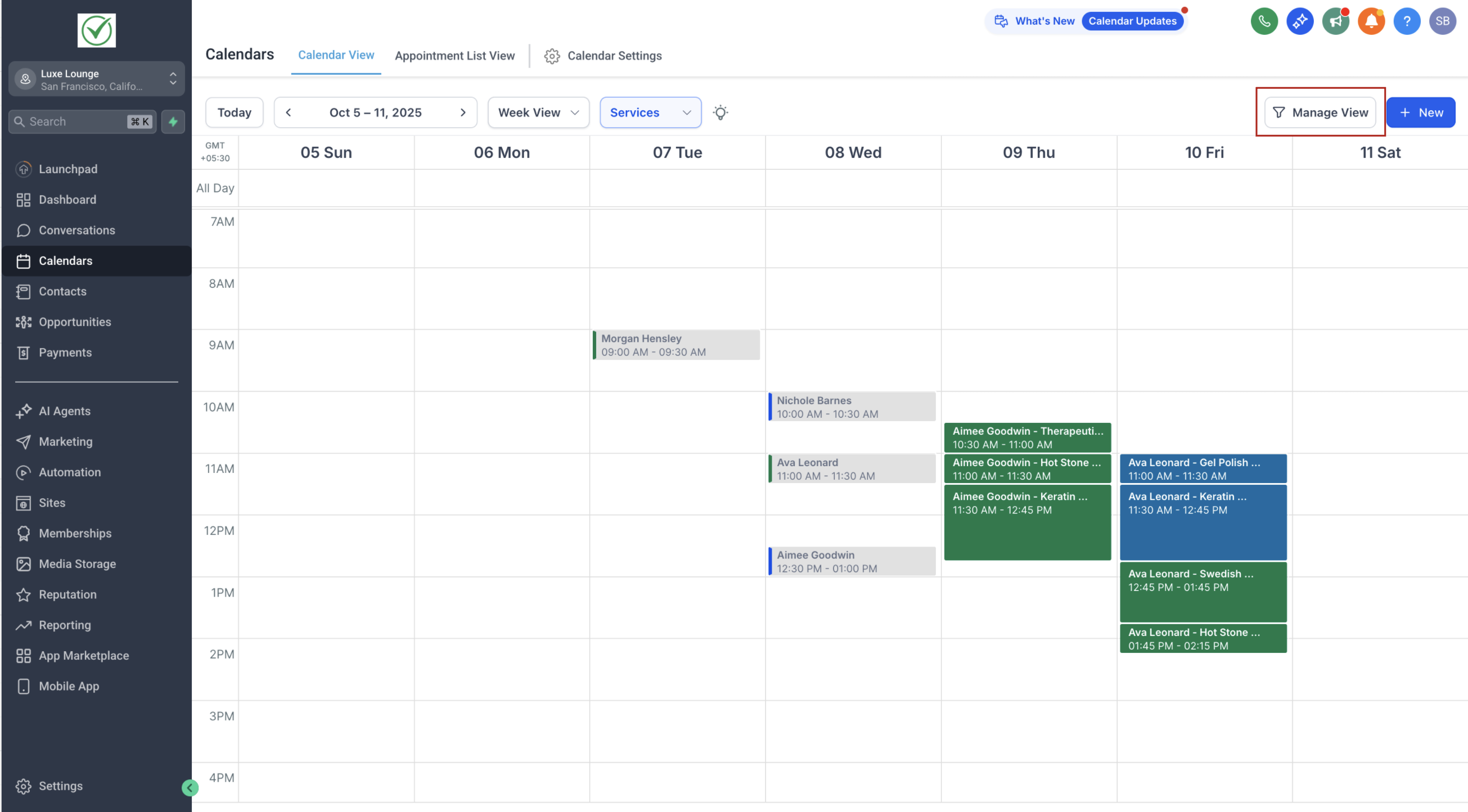
Hide/Show Filters: Use the Manage View button (top-right) to hide the right filter panel for more space, or bring it back when needed.
Tips
-
Enable Unified Service Booking View for a simpler overview of service bookings across staff and categories.
-
Use location filtering in Services View to focus on bookings in a specific branch.
-
Hide the right panel when presenting or reviewing busy calendars.
-
Use the mini month-view to quickly navigate across dates.
Limitation: Third-Party Calendar Updates
In Services View, any changes made directly on third-party calendars (such as Google Calendar, Outlook, or iCal) will not be reflected inside HighLevel.
-
To ensure your calendar stays accurate, all updates (rescheduling, cancellations, or edits) must be made within HighLevel.