
Using Custom Values in Calendars
You can now use Custom Values directly inside Calendar settings to personalize appointment details, notifications, and booking experiences.
This allows you to insert your own data—such as meeting links, salesperson names, or internal notes—into calendar fields using merge fields.
TABLE OF CONTENTS
- What’s New
- Where You Can Use Custom Values
- Before You Start
- How to Use Custom Values in Calendars
- Example
- Why This Matters
- Frequently Asked Questions
- Related Articles
What’s New
Custom Values are now available in the merge-field selector across:
-
Calendars
-
Services
-
Rentals
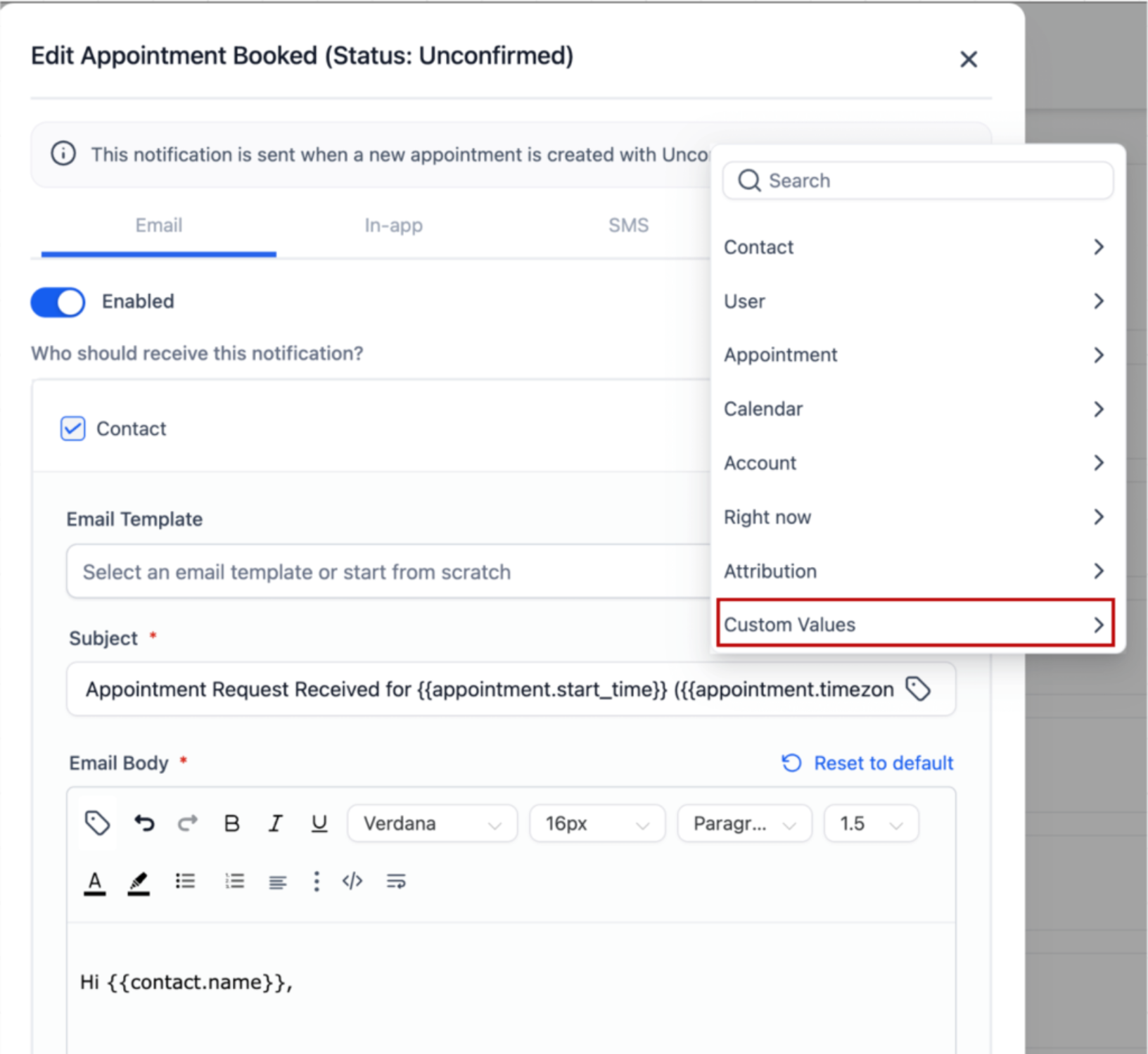
When adding a merge field, you will see a Custom Values section in the selector, making it easy to insert your own data.
Where You Can Use Custom Values
You can use Custom Values in any calendar field that supports merge fields, including:
-
Appointment Title
-
Meeting Location (Custom)
-
Email notifications
-
SMS reminders
-
Workflow messages triggered by appointments
Before You Start
Make sure you have created Custom Values:
-
Go to Settings → Custom Values
-
Click New Custom Value
-
Enter a name and value
-
Click Save
Your Custom Values will now be available in the merge-field selector.
How to Use Custom Values in Calendars
-
Go to Calendars
-
Open an existing calendar or create a new one
-
Navigate to Calendar Settings
-
Click into any text field (for example: Appointment Title or Notification)
-
Click the { } merge field icon
-
In the selector:
-
Scroll to Custom Values
-
Or use the search bar to find your value
-
-
Select your Custom Value
-
It will be inserted as a token (e.g., {{custom_values.your_key}})
-
-
Click Save
-
(Recommended) Book a test appointment to confirm the value displays correctly

Example
Below is an example of the merge-field selector showing the Custom Values section:
Why This Matters
Using Custom Values in Calendars helps you:
-
Personalize confirmations and reminders
-
Maintain consistent messaging across appointments
-
Reduce manual copy-pasting
-
Scale scheduling workflows more efficiently
Frequently Asked Questions
Do I need to enable anything to use this feature?
No. This feature is available by default.
Can I use Custom Values with workflows?
Yes. They work in email and SMS actions tied to appointment triggers.
Can I combine Custom Values with other merge fields?
Yes. You can use multiple merge fields in the same field.
What happens if I update a Custom Value?
Future messages will use the updated value. Previously sent messages will not change.
Are Custom Values available on mobile?
Yes. They are supported in calendar-related fields.